
SSL Certificates
··2 minute readManually Installing an SSL Certificate in cPanel
This guide will go over how to install an SSL certificate within cPanel.
Note: This guide mainly refers to SSL certificates purchased through Synergy Wholesale however, this process is generally the same for other externally issued SSL certificates.
Locating & copying your SSL certificate
Firstly you will need to have your Certificate, Private Key and CA Bundle handy to install the SSL certificate. If you have purchased the certificate through us, this will be attached in the email sent to the SSL contact. Otherwise you can find them using these steps:- Log into your Synergy Wholesale Management System.
- Navigate to SSL certificates → Manage.
- Click on the SSL certificate you would like to install and click 'Overview'
- Scroll down till you see the CSR, Private Key, Certificate, Certificate (P7B) and CA Bundle tabs.
- You can then copy the contents of the Certificate, Private Key and CA Bundle using the 'Copy to clipboard' button on the bottom right, or download the SSL certificate using the 'Download ZIP File' button.
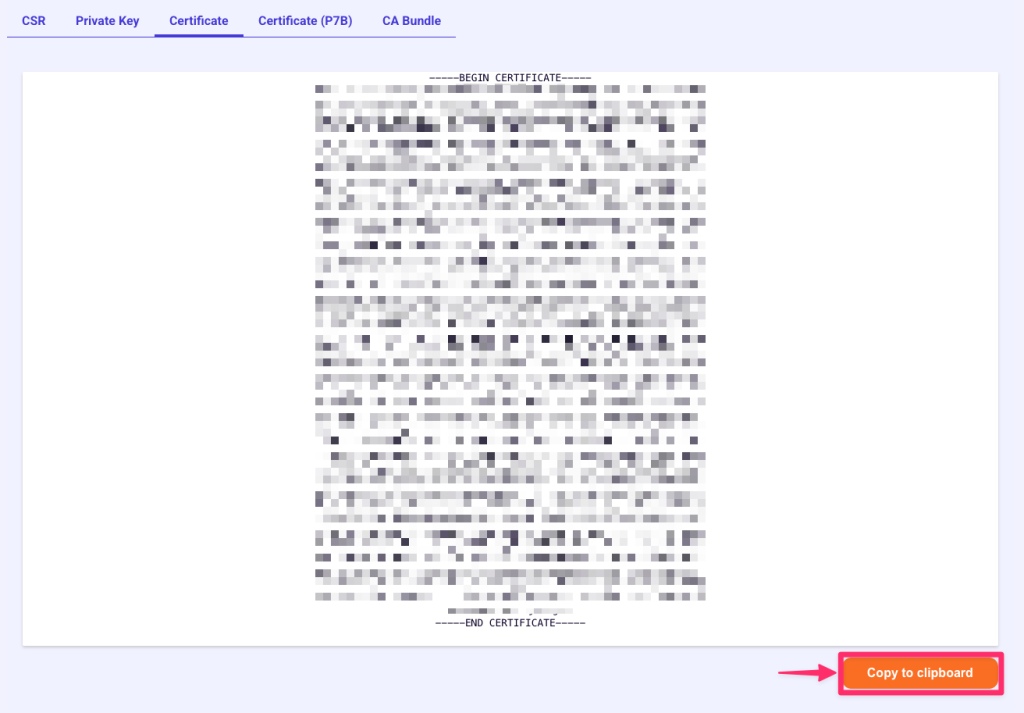
Note: We only store the Private Key if the CSR was generated through us or manually saved here. If generated externally, you should have the copy provided at the time of creation.
Installing the SSL certificate
- Log into cPanel
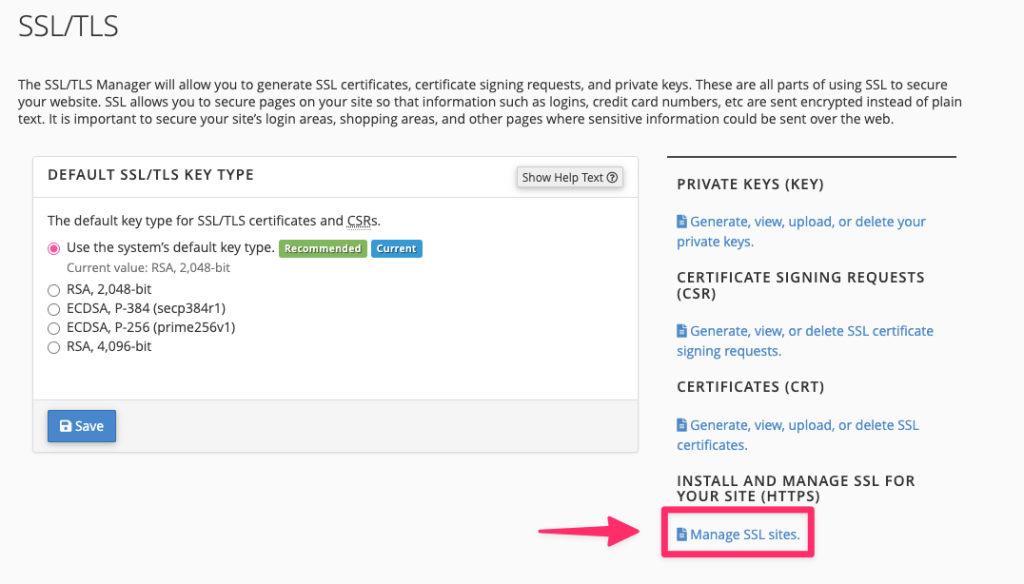
- Navigate to the 'SSL/TLS' tool using the search bar at the top right.

- From there, click on 'Manage SSL sites.' and scroll down to the 'Install an SSL Website' section.
- Select the domain that you are installing the certificate for from the dropdown menu.
- Copy the Certificate, Private Key and CA Bundle into each corresponding box and click on 'Install Certificate'.
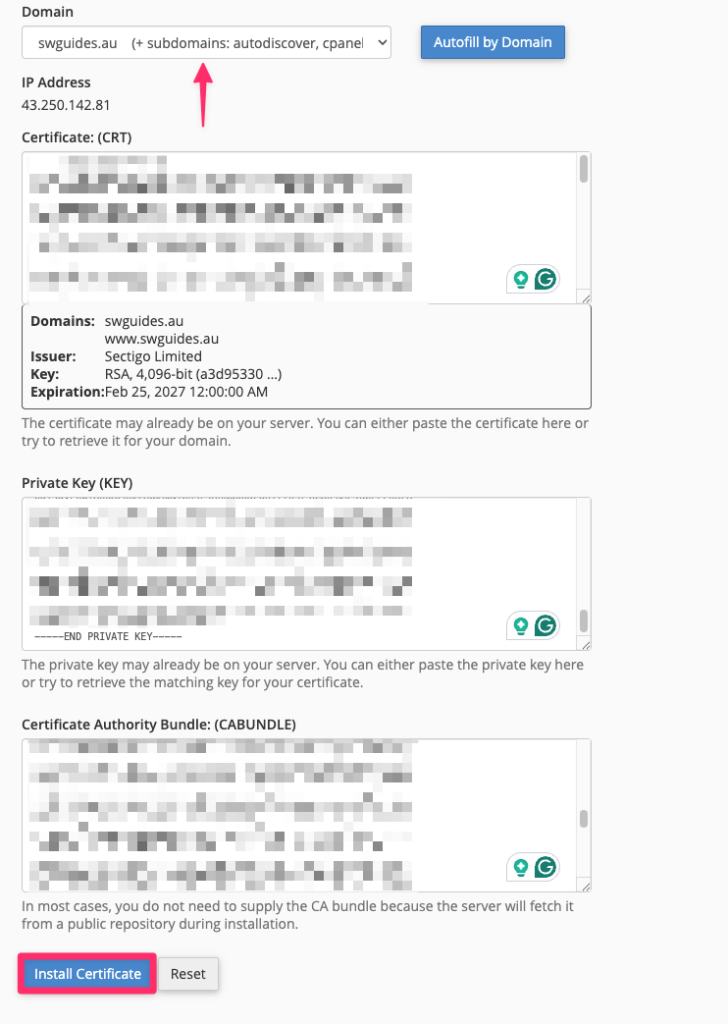
- Once installed, your site will be immediately covered by your newly installed SSL certificate!