Web Hosting
··2 minute readHow do I perform a traceroute?
If you're having issues connecting to your website, it's likely that we'll ask you to perform a traceroute and provide us with the result so that we can investigate where the connection is dropping out.
A traceroute provides us with data on the route your computer/internet provider is taking to reach our server (essentially which roads it’s taking). To conduct a traceroute please follow the instructions below.
Windows (7, 8, 10, 11)
- Press Windows + R to open the Run box. When this pops up, type cmd (without quotes), then press enter.

- In the command window type
tracert yourdomain.comand press enter. Substitute yourdomain.com in for your website's domain name/address.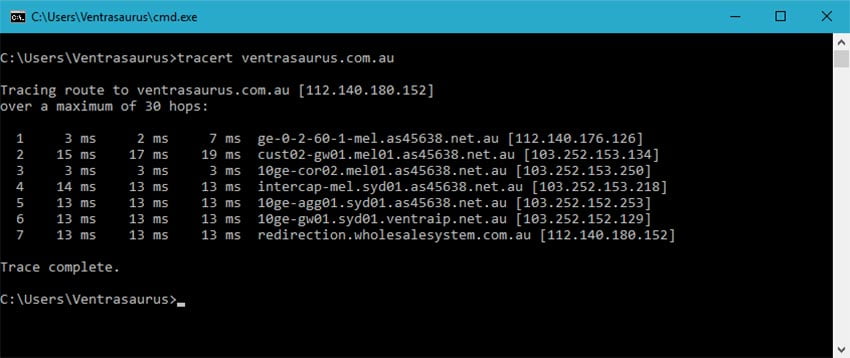
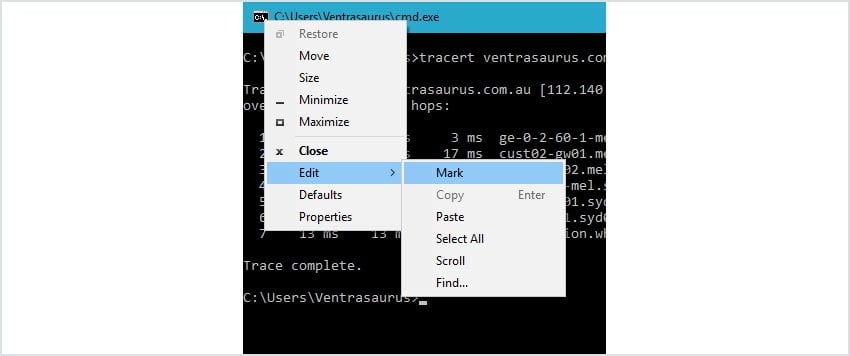
- To copy the results right click the command window, click Edit, then click Mark.
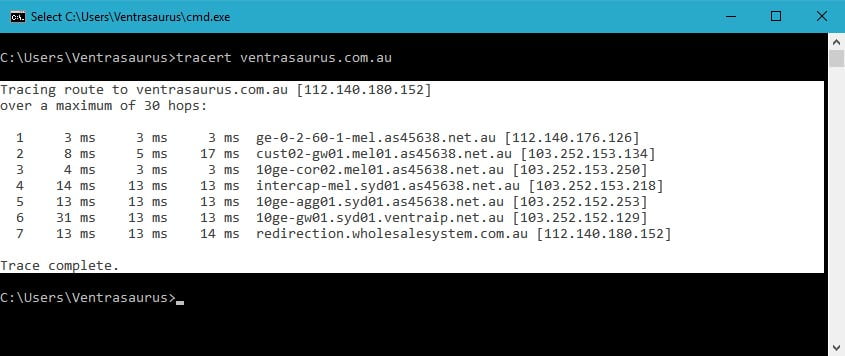
- Highlight the text and right click again. You can then paste the results where you need them (such as in an support request).
macOS (most versions)
- Press Command (⌘) + Spacebar to open the Spotlight Search. When it opens, type Terminal and press return/enter.

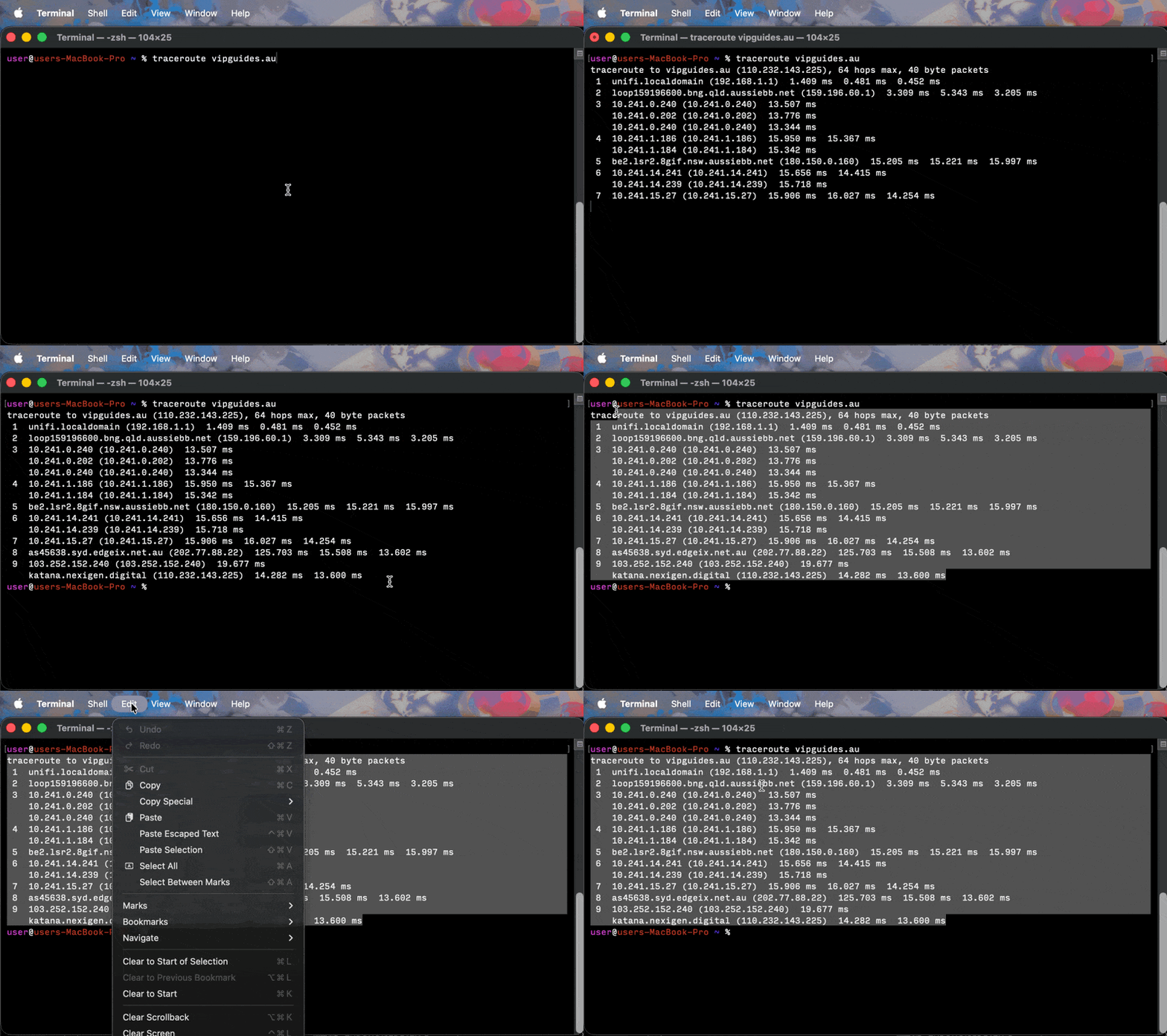
- In the terminal window, type
traceroute yourdomain.comand press return/enter. Substitute yourdomain.com in for your website's domain name/address. - Highlight the results and press Command (⌘) + C to copy the text, or, click Edit, then Copy. Paste the results into your support request (or wherever else they need to go).