Microsoft 365
··3 minute readAll about Granular Delegated Admin Privileges (GDAP)
GDAP or Granular Delegated Admin Privileges is a feature which grants our support team Global Administrator access to your Microsoft 365 tenant so we're able to quickly assist with the day to day admin tasks and any troubleshooting assistance.
Why would we need it?
If you're not sure how to setup your Microsoft service, or have an issue that you would like us to investigate on your behalf, or if you lose your login details, having GDAP setup allows us access your service to quickly help you. The types of tasks our team is able to help you with GDAP access is:- Tenant setup
- Resetting user passwords
- MFA re-registrations
- Email Migrations
- General troubleshooting
- Submitting tickets to Microsoft support on your behalf
How it works
Establishing GDAP with us works in two ways:New services
- Log into your Synergy Wholesale Management Portal → Click Microsoft 365 → Manage Clients → Add New Client.
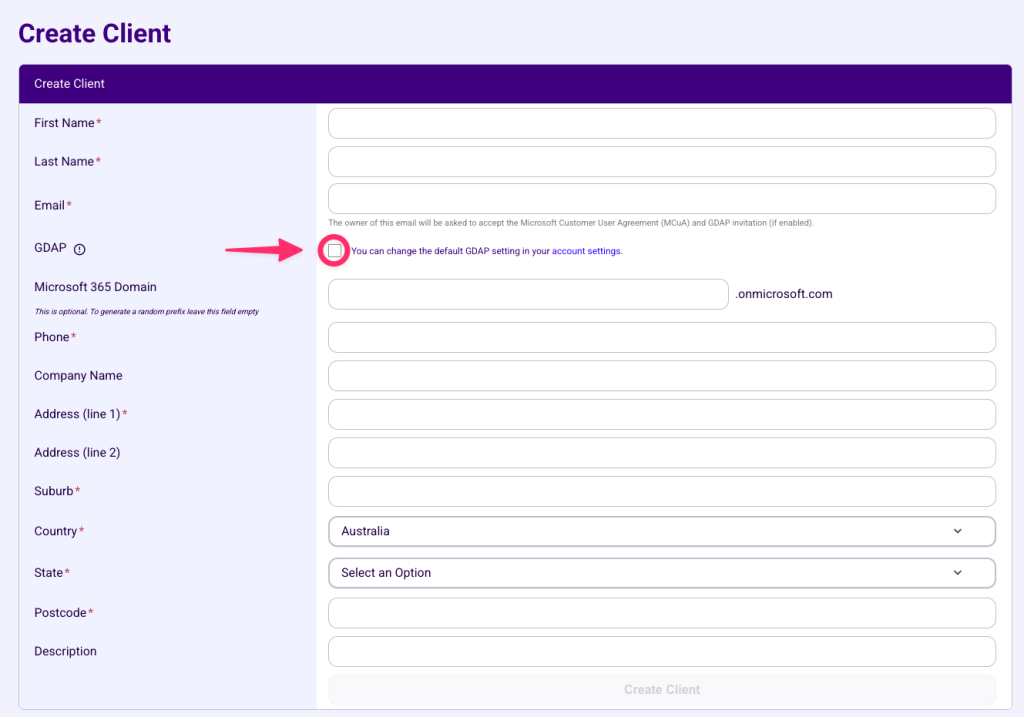
- On the client creation page, click the checkbox next to GDAP. Fill out the form as per normal and click Create Client.
- Next, purchase a subscription and login as normal to accept the MCuA agreement.
The GDAP relationship process will not start until:
- A subscription is purchased
- MCuA agreement has been signed.
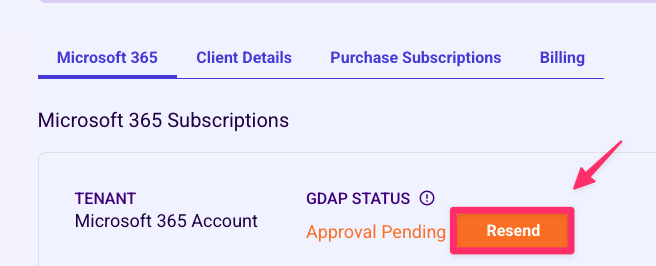
- Within 12 hours of both conditions being met, an email will be sent to the address listed within the client details page with an approval link. You can resend the email by clicking the "Resend" button
- Click on the link within the email or head directly to the Partner relationship page.
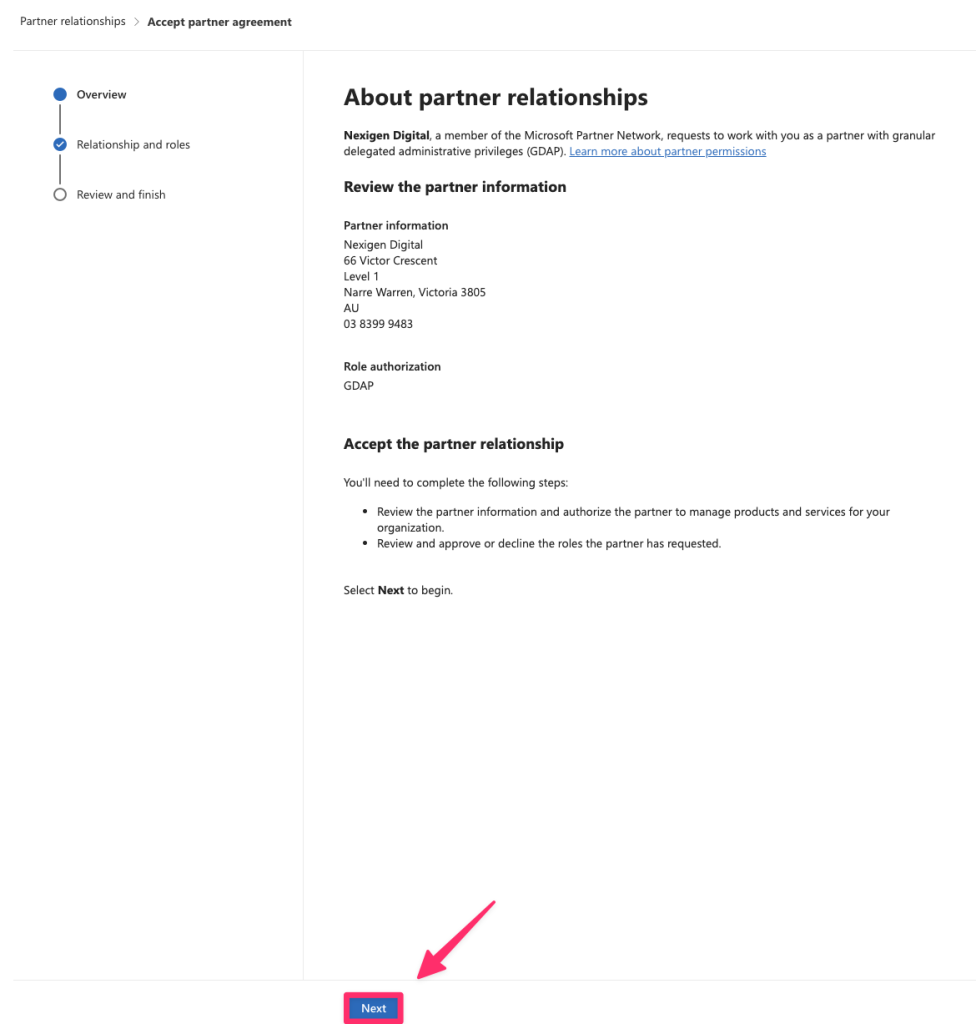
- You will be prompted to sign in, Login as the Global Administrator user and click next once the partner relationship page loads.
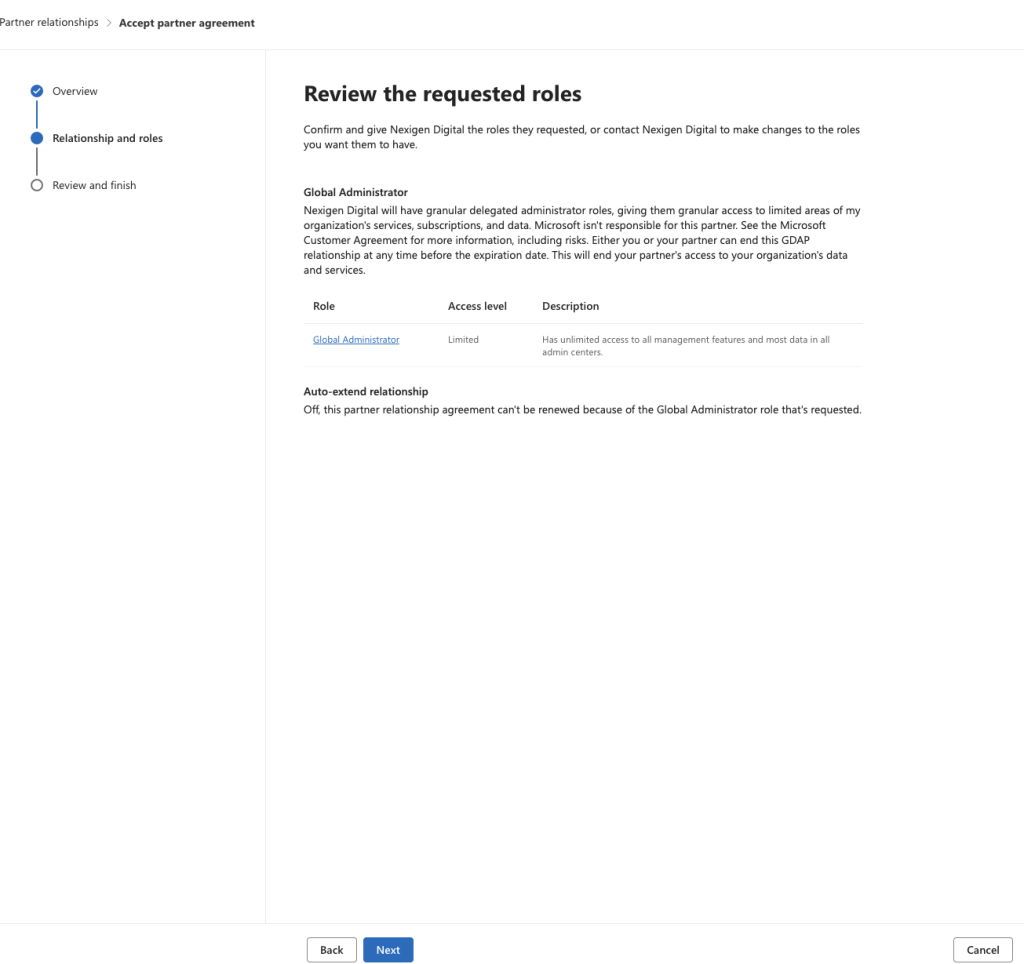
- You will then see Global Administrator listed as the requested roles, click Next
- Click Accept when prompted.
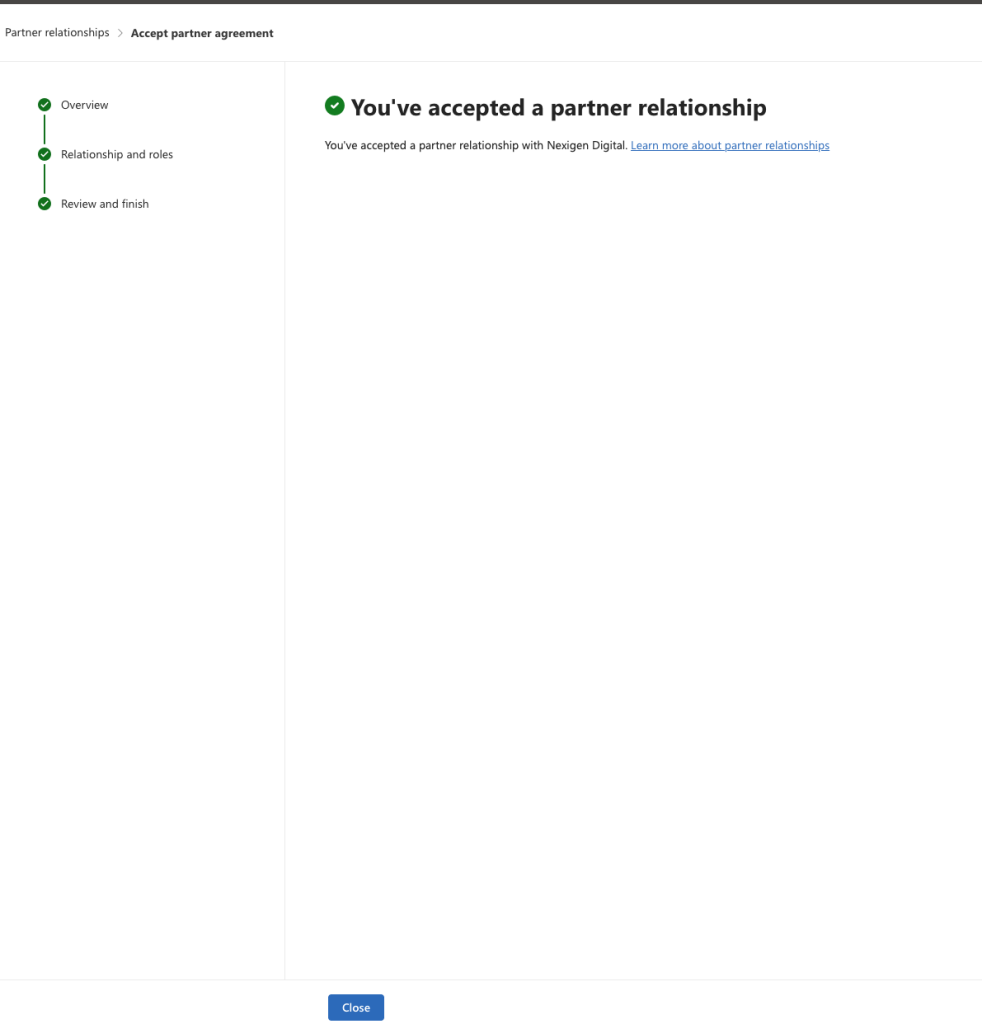
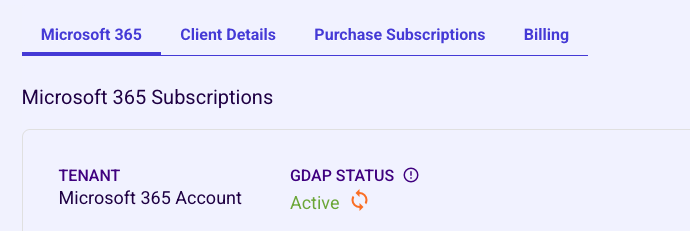
- Once accepted, GDAP should be successfully established and the GDAP status will be updated to Active.
Existing services
To establish GDAP for an existing service:- Log into your Synergy Wholesale Management Portal
- Click on Microsoft 366 → Manage Clients.
- Search for and click on the desired client > Click Manage Client.
- Click the Request button under "GDAP Status". Then click Confirm.
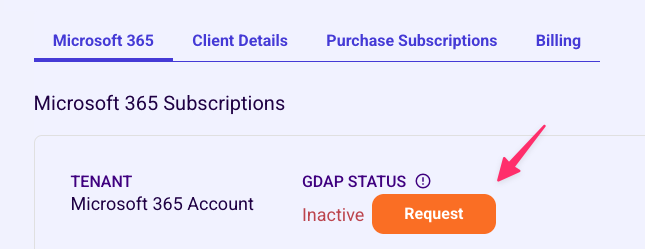
- This will email the address listed within the client details page with an approval link. You can resend the email by clicking the Resend button.
- Click on the link within the email you receive or head directly to the Partner relationship page.
- You will be prompted to sign in, Login as the Global Administrator user and click next once the partner relationship page loads.
- You will then see Global Administrator listed as the requested roles, click Next
- Click Accept when prompted.
- Once accepted, GDAP should be successfully established and the GDAP status will be updated to Active.
Enabling GDAP by default
When creating a new Microsoft 365 client, you can choose to enable GDAP by default by:- Log into your Synergy Wholesale Management Portal.
- Hover over your profile at the top right and click Account Settings
- Click the Configurations tab at the top
- Scroll down to Microsoft 365 and check Enabled

Removing GDAP access
If you would like to remove GDAP access, you can do so by:- Logging into the Microsoft Admin Center as the Global Administrator account.
- Navigate to Settings → Partner relationships.
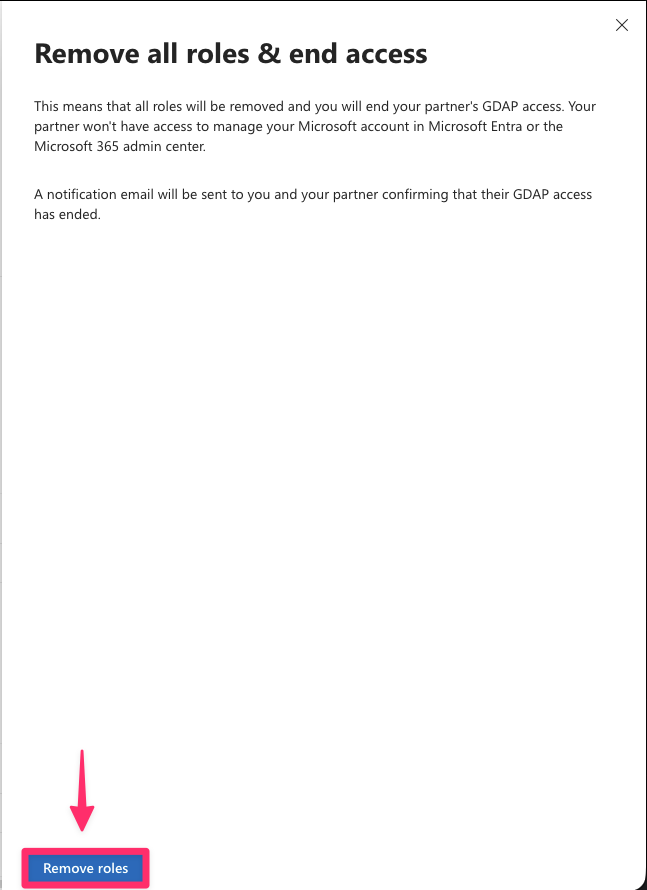
- Under Granular delegated administrative privileges (GDAP), click the three dots on the the active partner relationship under "Nexigen Digital" → Click 'Remove roles'.

- A confirmation pop up box will appear, click 'Remove roles', then 'Yes' to revoke GDAP access.