
Domain Names
··2 minute readManaging DNS Records using DNS Hosting
This guide will go over adding, removing, and editing DNS records using Synergy Wholesales included DNS hosting.
To manage your DNS records, follow these steps:
 Once you have edited the record, click on the tick icon to save.

 You can disable DNSSEC by clicking on the 'Disable DNSSEC button' on the top right and clicking 'Yes' in the confirmation popup.
Before you begin
If you would like to use our free included DNS hosting, the domain name must be held with Synergy Wholesale, and the Nameservers must be set to "DNS Hosting". To do this, you can use this guide hereNote: This will immediately replace all existing DNS records (A, CNAME, MX records) with the records present under the DNS zone provided by the new Nameservers.
- Login to the Synergy Wholesale Management System
- Click on 'Domain Names' → 'Manage' (or use the search bar and search for the domain name)
- Search for the domain you would like to manage and click on 'Nameservers & DNS'.
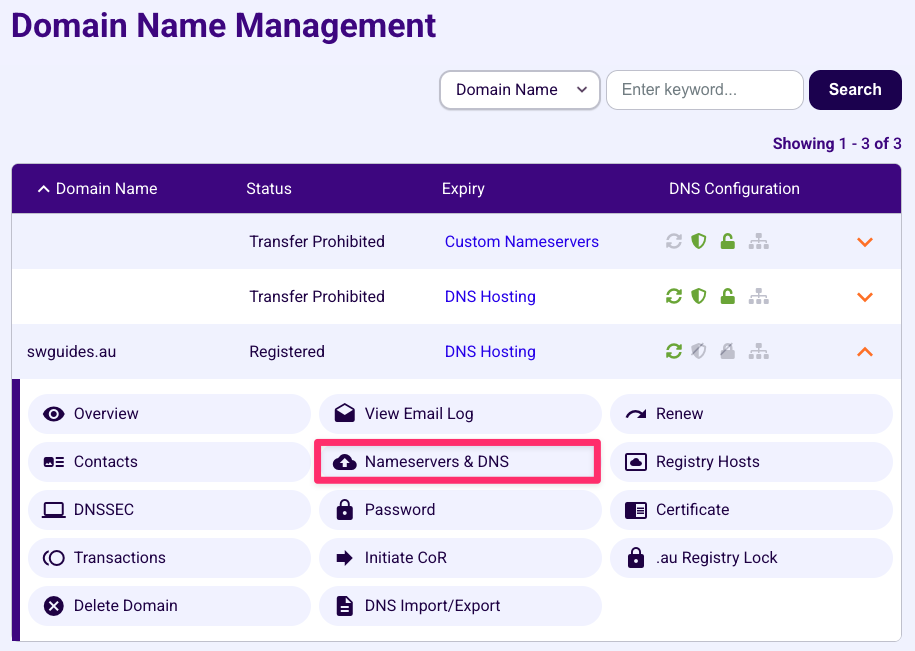
- From there you will see a list of your DNS records which you can edit, add or remove.
Adding DNS records
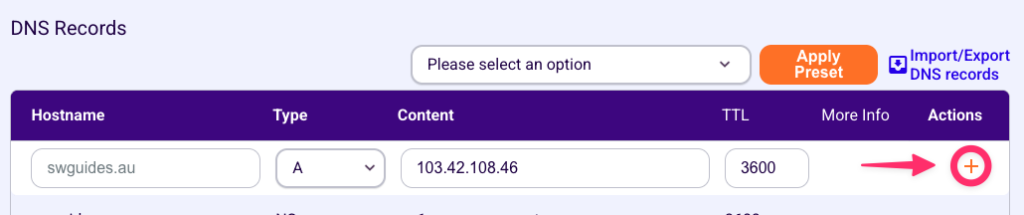
To add a DNS record, at the top of the table, you can fill out:- Hostname: Enter the hostname/subdomain for the record to be added. Leave this blank for the root domain or if a provider asks you to add a record on the "@" hostname
- Type: Select the record type from the dropdown.
- Value: Enter the value of the DNS record
- TTL: Enter a TTL of the record. We recommend to leave as default (3600)
DNS Presets
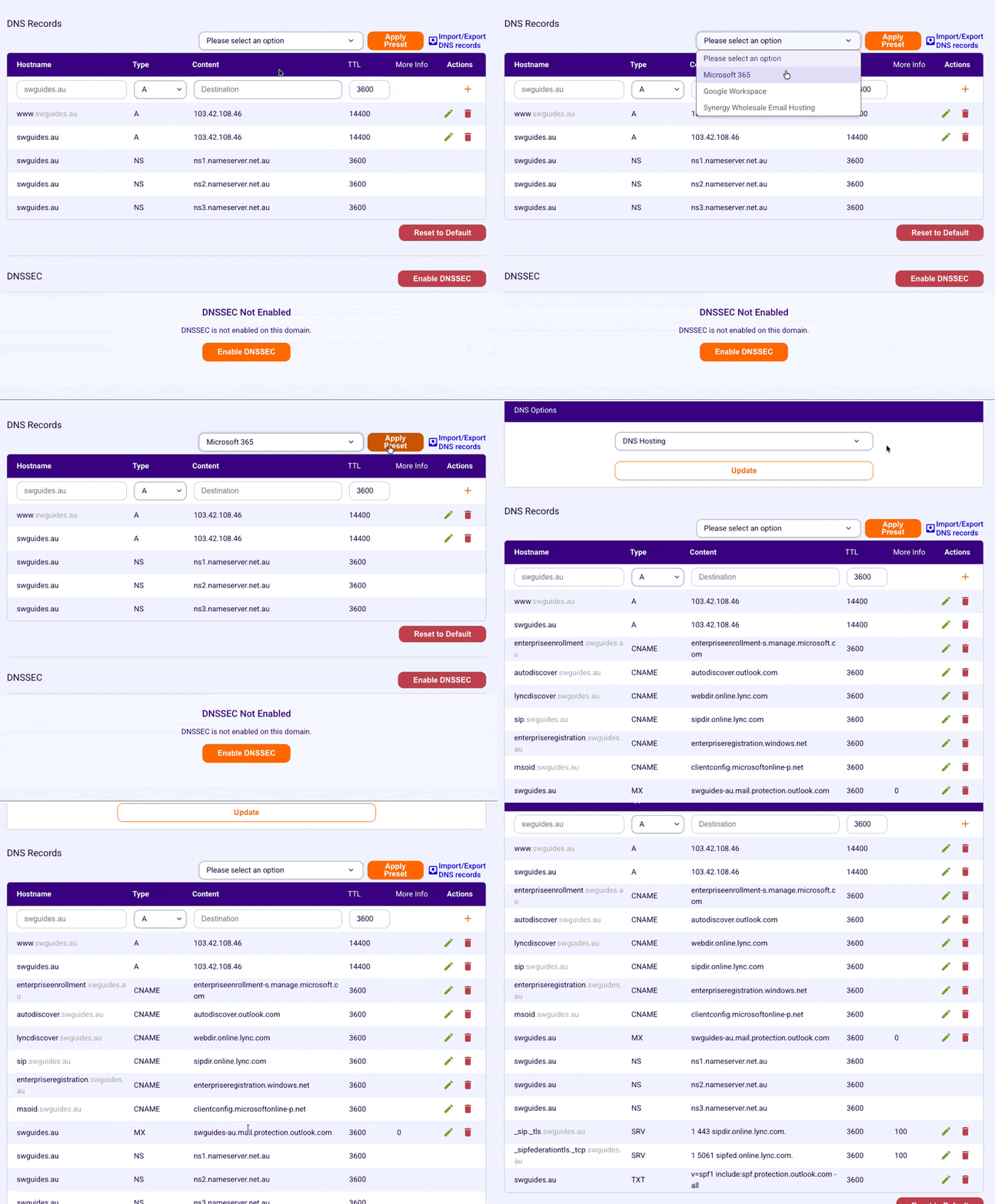
We have added the ability to quickly add preset DNS records for Microsoft 365, Google Workspace and Synergy Wholesales Email Hosting. To do this, click on the dropdown menu and select a DNS preset, after selection, click on the 'Apply Preset' button to add the records.
Editing DNS records
To edit a DNS record, click the pencil icon on the right, from there you can update the existing record.
Once you have edited the record, click on the tick icon to save.
Removing DNS records
To remove a DNS record, click on the "trash can" icon on the right, then click on the 'Delete' button to confirm.
DNSSEC
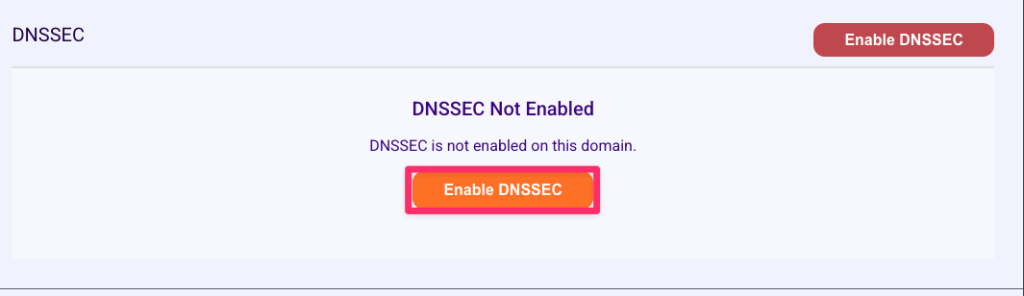
DNS hosting also comes with the ability to enable DNSSEC on your domain. You can enable DNSSEC by clicking the 'Enable DNSSEC' button. This will generate DNSSEC Keys on our DNS hosting nameservers and automatically apply them for you on the domain.
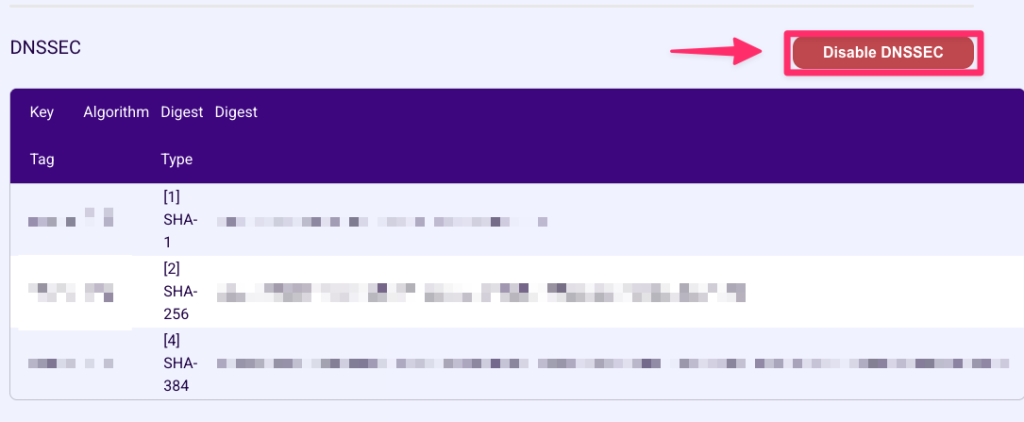
You can disable DNSSEC by clicking on the 'Disable DNSSEC button' on the top right and clicking 'Yes' in the confirmation popup.