
Microsoft 365
··2 minute readLogging into Microsoft 365 for the First Time
This guide will go over the initial setup process for Microsoft 365
Once accepted, it may take up to 10 mins for the licenses to be added to your tenancy and you'll be ready to add your domain!
- Login to the Synergy Wholesale Management System and click on Microsoft 365 → Manage Clients.
- Click on the client that you would like to setup and click 'Manage Client' from the dropdown.
- Use the Account Details to sign into the Microsoft Admin Center
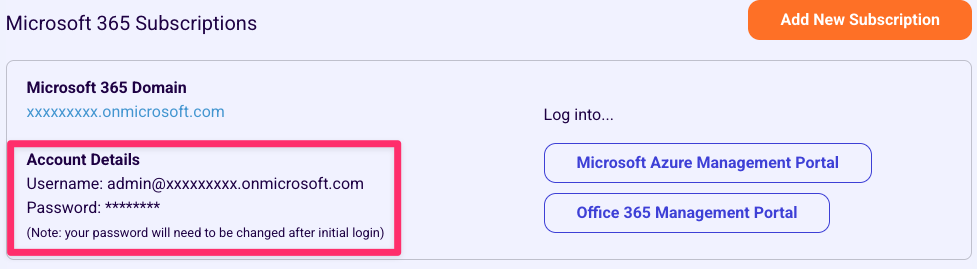
- Once you have logged in for the first time, you will be prompted to update your password, once you have made note of your new password, click on 'Next'
- Next, Setup 2 factor authenticator. You can either use Microsoft's authenticator app or you can use your own by selecting the option 'Use another Authenticator app'
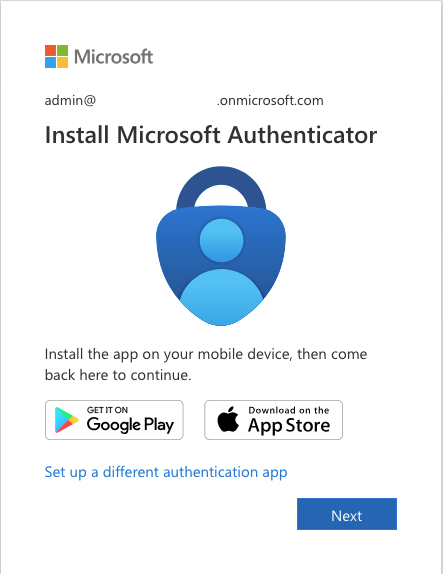
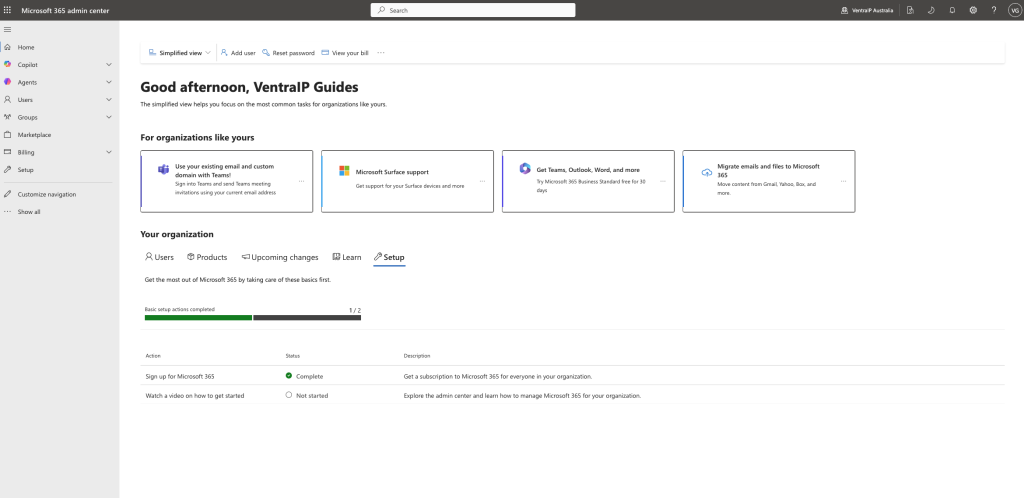
- Once you have setup 2 factor authentication, you will be greeted with the Microsoft 365 admin centre dashboard.
Accepting the Microsoft customer user agreement
To ensure that your licenses that you have purchased are correctly assigned and working, please click here to go directly to agree to the customer agreement. Alternatively, head to Billing -> Partner relationships to accept this agreement.Note: This step is crucial as your service will not work without the agreement accepted.
What's next?
Next we will be adding a domain into Microsoft 365. This is part one of our getting started series, to skip ahead to a step, you can use the guides below:- Part one: Logging into Microsoft 365 for the first time
- Part two: Adding a Domain Name to Microsoft 365
- Part three: Adding users and assigning licenses in Microsoft 365