
Synergy Wholesale

Cloning a website using WordPress Management

If you haven't already installed or imported an installation into cPanel's WordPress Management, you will need to do that first. Here are the steps you need to take to clone an existing WordPress installation.
  1. Login to your Synergy Wholesale account
  2. Click on Hosting to the left of the page
  3. Click on Manage 
  4. Click on the web hosting service you want to login to
  5. Click on the Maintenance tab in the drop-down menu
  6. Click cPanel Login
  7. Click on WordPress Management under Applications.
  8. Click on the Clone option in your installation's details. cPanel WordPress Toolkit Clone
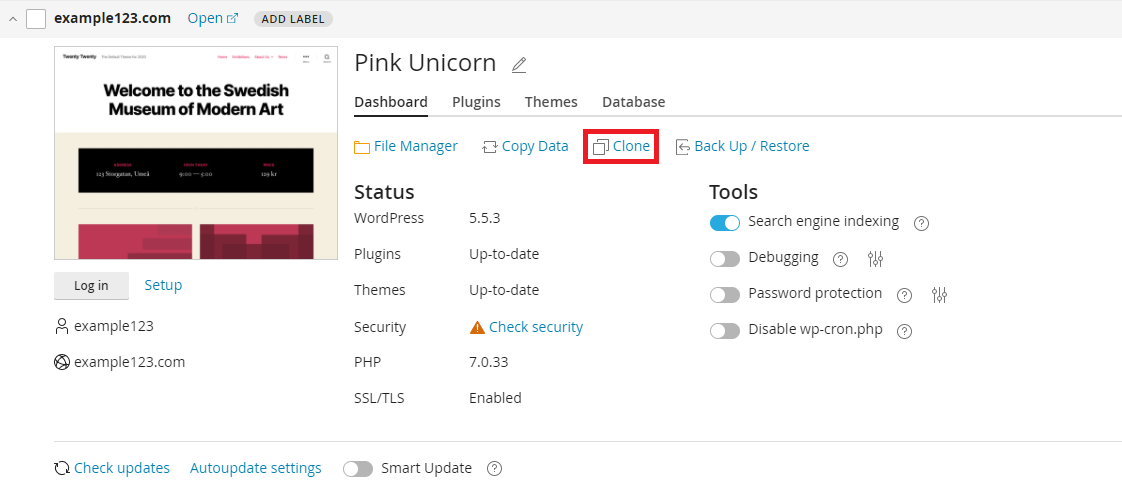
  9. Some cloning options will appear, giving you the following options:
    1. Create subdomain: this option will allow you to create a new sub-domain of your primary domain with a copy of your existing website.
    2. Use existing domain or sub-domain: this option will allow you to select an existing domain or sub-domain you have setup to clone your website to.
    3. Database: some advanced users might want to change the database name, but it's not necessary.
  10.  Click Start to begin the cloning process.

Related Articles

Advanced··1 minute read

Some of the more popular blog and eCommerce platforms have LiteSpeed Cache plugins that allow you to take more control over how LiteSpeed Cache caches your website. Here is a list of the available plugins: LSCache for WordPress LSCache for PrestaShop LSCache for Xenforo LiteMage for Magento LSCache for Joomla LSCache for Drupal LSCache for MediaWiki LSCache for OpenCart LSCache for Shopware LiteSpeed Cache is also available for the Laravel PHP Web Application Framework.

Getting Started··1 minute read

The Synergy Wholesale Management System is the gateway to managing all of your wholesale services. With the Synergy Wholesale Management System, you can manage all of your services within one location.

Web Hosting··1 minute read

cPanel's WordPress Management allows you to easily create and manage your WordPress websites, using the following key features: One-click Install WordPress Scan for existing WordPress installations and manage them from the WP Management interface Security Advisor with ImunifyAV Code Protection Scan all of your websites for security risks, if detected the Security Advisor can also resolve the security risks with a click of a button. Smart Update functionality Automatically test updates for themes, plugins, languages, and WordPress itself in a completely safe environment at no risk to your live website.

Web Hosting··1 minute read

Adding an existing website to cPanel's website toolkit is easy! Here's how: Login to your Synergy Wholesale account Click on Hosting to the left of the page Click on Manage  Click on the web hosting service you want to login to Click on the Maintenance tab in the drop-down menu Click cPanel Login Click on WordPress Management under the Applications header Click Scan After you click Scan, cPanel will automatically detect WordPress installations that exist inside your files, and add them to the WordPress Toolkit.

Web Hosting··1 minute read

cPanel's WordPress Management offers a simple interface that allows you to manage plugins and themes for your WordPress installations. Managing Plugins Activating, Deactivating, Uninstall and Update In the plugins tab, you can easily select single or multiple plugins, then opt to Activate, Deactivate, Uninstall and Update them.

Web Hosting··1 minute read

cPanel's new WordPress Management feature allows you to quickly and easily install WordPress. Here are the steps you need to take: Login to your Synergy Wholesale account Click on Hosting to the left of the page Click on Manage  Click on the web hosting service you want to login to Click on the Maintenance tab in the drop-down menu Click cPanel Login Click on WordPress Management under Applications.